Learn how to use the Blog section in Quizard with this beginner-friendly tutorial. This guide will walk you through everything—from exploring blog posts and categories. Whether you're new or experienced, you'll quickly understand how to manage blogs easily and effectively.
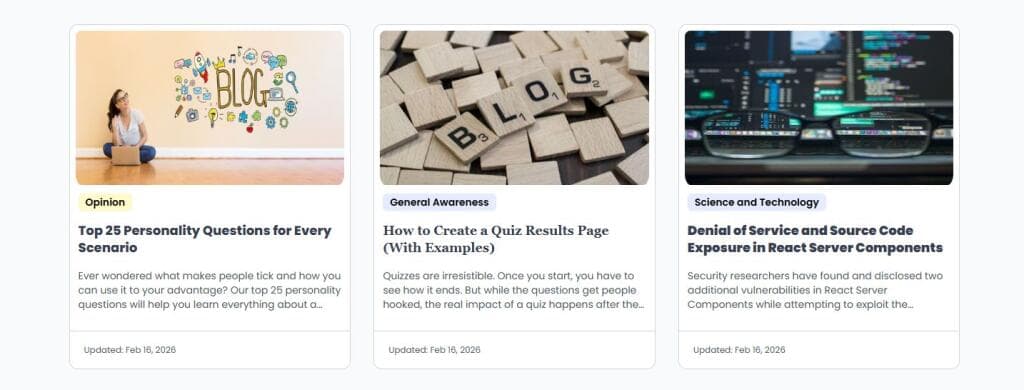
Once your blog is published, it will appear on the blog page along with your other blogs. This page displays all blogs with their thumbnails, titles and basic details so readers can easily browse and select the content they want to read. From here, users can open your blog, read the full blog and explore related posts. You can also review your blog’s appearance on this page to make sure the layout looks correct, the thumbnail is displayed properly and all information is shown clearly without errors.
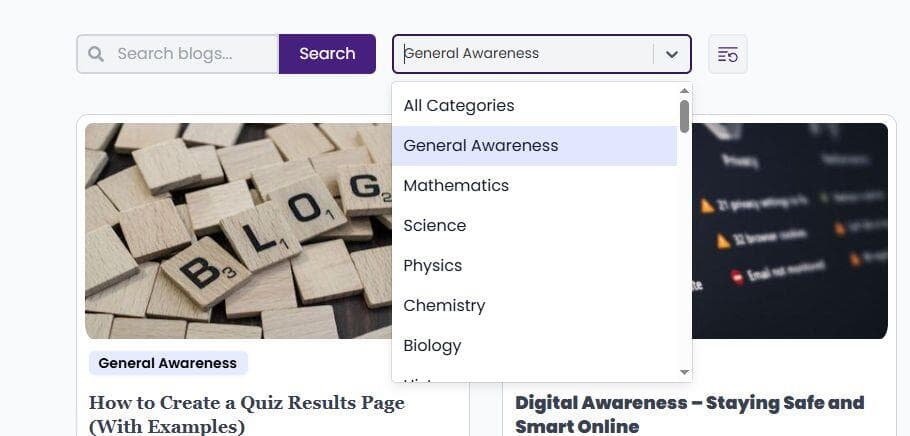
On the blog page in Quizard, you can easily filter blogs using the search bar and category selection options. These tools help you quickly find specific blogs when you have many posts, saving time and making navigation easier. You can search by title keywords or choose a category to view only related blogs. If you want to remove the applied filters, simply click the Reset button to see all blogs again.
After publishing your blog, go to the blog page in Quizard and open your blog preview by selecting your blog from the list. Carefully review every part including title formatting, images, FAQs and layout. If you notice any problem, go back to Posts section, change status to Draft and edit it.

Your blog page also displays similar blogs based on category. This helps readers discover related content and increases engagement.

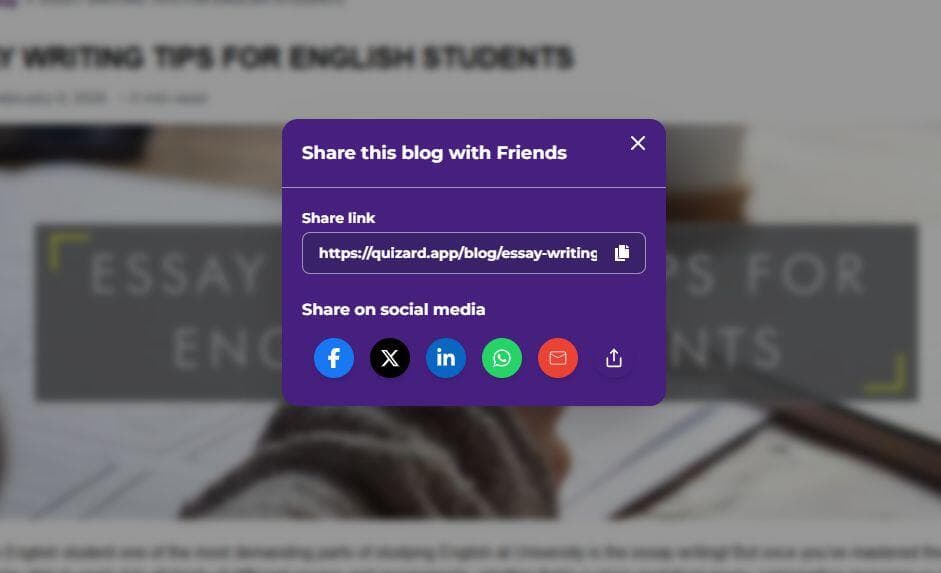
You can share your blog using the built-in share option. Copy the link and share on WhatsApp, Facebook and other platforms to increase reach.